
Recreating a camera object does not necessarily restore the camera's configuration. Exposure and other settings may remain in the device after your application disconnects. For acquisition software developers, the useful operation is usually loading a documented default user set while acquisition is stopped. This procedure separates selecting that set, executing its load command, and checking the resulting exposure before capture begins. It also explains why a C++ enumeration error needs a different fix from a camera feature-access error.
1. Choose configuration restoration, not device restart
First decide what you need to restore. Loading a configuration, restarting a device, and rebuilding an application object are different operations.
| Operation | What it does | Why it may not solve the problem |
|---|---|---|
| Recreate the software object | Rebuilds the application's connection or wrapper | The physical device may retain its current settings |
| Select a user set | Chooses the target configuration for a subsequent operation | Selection alone does not load its values |
| Execute a user-set load | Applies the selected configuration when supported | The selected set might not be the baseline you intended |
| Change the startup user set | Changes which configuration is selected at startup, where supported | It is not necessarily an immediate configuration load |
| Restart or power-cycle | Restarts the device | Startup behavior depends on its documented configuration |
For the procedure below, use the manufacturer's documented default configuration. Do not assume a saved application recipe is equivalent to a factory baseline.
A default user set is also not necessarily a complete factory reset. Communication settings, calibration, persistent storage, and other features may sit outside its scope. Confirm what the load operation restores for your device and firmware.
2. Confirm the features and their access conditions
Open the intended camera and inspect its device feature map. In GenICam-style interfaces, the relevant features commonly include UserSetSelector and UserSetLoad. Names, supported entries, and availability remain device-dependent.
Check all of the following before issuing a command:
- The selector exists and is available in the current device state.
- The documented default entry exists and can be selected.
- The selector is writable when you intend to change it.
- The load command exists and is executable in that state.
- Your connection has the access rights required to change configuration.
Do not treat an absent feature as a namespace problem. A compiler cannot determine whether a connected device exposes a runtime node. Conversely, a runtime feature map cannot fix an undeclared C++ identifier.
Use the feature-access error diagnostic procedure when a node is missing or unavailable. Keep that investigation separate from the restoration sequence itself.
If user-set loading is unsupported, follow the manufacturer's documented configuration restoration procedure. Where documented, this may involve explicitly writing individual settings. There is no universal substitute that restores every camera's defaults.
3. Stop acquisition and resolve outstanding buffers
Perform the load before starting capture. If your application is already acquiring, first stop acquisition through the documented SDK sequence.
Coordinate ordinary production triggers through the machine's normal operating procedure. Do not alter safety functions to make camera configuration possible. A camera configuration command is not a machine safety function.
Then wait for active callbacks to finish and return outstanding image buffers as required by the SDK. Prevent another thread from writing exposure, gain, trigger mode, or user-set selection during restoration. A single configuration owner avoids races between startup code and an automatic control task.
Stopping acquisition does not necessarily discard images already queued by the application. Mark or drain those frames according to your acquisition library's rules. Otherwise, your first displayed image may predate the configuration load.
For applications involving multiple devices or production triggers, the startup synchronization troubleshooting procedure helps separate configuration readiness from trigger readiness.
4. Select the default set, then execute its load command
Selecting a user set and loading it are separate actions. A successful selector write only confirms that the selection was accepted; it does not demonstrate that exposure changed.
The following is SDK-neutral pseudocode, not a compilable C++ example. Replace each operation with the corresponding documented SDK call and error handling.
open the intended device with configuration access
stop acquisition if it is running
wait for acquisition workers and resolve outstanding buffers
check selector, default entry, and load-command availability
select the documented default user set
execute the user-set load command
wait for documented command completion
read back the selector and relevant configuration features
apply any deliberate application overrides
validate the final configuration
start acquisition only after validation succeeds
Use command completion reporting if the SDK provides it. If execution is documented as synchronous, follow that behavior rather than adding an arbitrary delay. A fixed sleep does not establish that a command succeeded.
Do not execute UserSetSave merely to restore defaults. Saving can overwrite a writable saved configuration, which is a different task. Similarly, leave the startup-set selector unchanged unless you deliberately want a different startup policy.
If loading fails, keep acquisition stopped and report the failed operation, device identity, access state, and SDK error. Continuing with unknown settings hides the fault until inspection results change.
5. Resolve C++ enumeration scope errors separately
An undeclared enumeration identifier is a compile-time issue. It occurs before the program can ask the camera to load anything.
Generated C++ parameter interfaces often place enum types or values inside a namespace associated with their camera parameter definitions. Including a header makes declarations available, but it does not automatically bring every name into the current scope.
Check these items against the installed SDK's documentation and examples:
- Use the parameter header supplied for the interface you actually instantiate.
- Find the declaration of the selector's enumeration type and value.
- Qualify the identifier with its declared namespace and, where applicable, enum scope.
- Confirm the headers and linked SDK libraries belong to the intended installation.
- Rebuild before investigating runtime feature access.
Do not copy a namespace from a different camera family or SDK release. Also distinguish scoped C++ enums from unscoped generated enums; their qualification rules can differ.
Some SDKs offer a generic feature-map API that accepts symbolic entries such as Default. That can avoid generated enum dependencies, but it does not remove runtime availability checks. Use a symbolic entry only when the connected device exposes it and the documentation identifies it as the required baseline.
6. Verify exposure with units and automatic controls accounted for
After loading, read exposure through the SDK again. Do not reuse a value cached before the load. Access modes, limits, or dependent features may also have changed.
Read back automatic exposure state where that feature exists. A restored configuration can enable automatic exposure, allowing subsequent frames to use different exposure times. If your application requires manual exposure, disabling automatic control is a deliberate override applied after restoration, not proof that restoration failed.
For time conversion, use the unit documented for the feature:
For example, an application requesting 8 ms would write 8 × 1000 = 8000 microseconds only if the API expects microseconds. This is an application example, not a default value for any camera.
A successful load need not reproduce a number remembered from another device, firmware version, or operating mode. Compare against the documented baseline for the current configuration. For floating-point values, use a tolerance based on documented increments or quantization rather than an arbitrary exact-equality test.
The guide to interpreting exposure and gain units explains raw-value interpretation. For automatic-control interactions, see automatic iris, exposure and gain control.
7. Verify the first newly acquired frames
Configuration readback and captured-frame verification answer different questions. Readback shows the current feature state; frame metadata, when supported, can describe the settings associated with a particular image.
Start acquisition only after configuration checks pass. Record the configuration boundary in your application, then identify frames acquired after that boundary using documented frame identifiers or timestamps where available.
A useful verification record includes:
- Device identity and firmware version.
- Selected user set and load-command result.
- Exposure, exposure-control mode, gain, and trigger mode after loading.
- Any application overrides applied afterward.
- Identification of the first accepted post-configuration frame.
Use a stable target and constant lighting for the image check. Brightness alone cannot prove exposure restoration because illumination, gain, aperture, and processing also affect the image.
Where supported, the procedure for verifying per-frame exposure and gain metadata provides a stronger check than comparing preview brightness.
8. Check camera suitability before ordering
Choose the acquisition architecture first, then verify configuration support. The presence of GigE or a particular shutter type does not establish that a device offers the user-set workflow described above.
For host-controlled acquisition, compare area scan cameras. The LS-MV-133GM-GE is a monochrome GigE candidate with a global shutter.
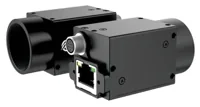
- Sensor format
- 1/2.7"
- Interface
- GigE
- Resolution
- Up to 3 MP
- Shutter
- Global
For on-device inspection, compare smart cameras and vision sensors. The MV-SC3013XM-12M-ATN-H is a monochrome GigE vision sensor with a global shutter.
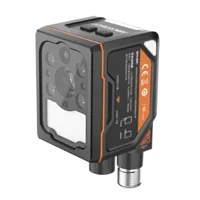
- Interface
- GigE
- Resolution
- Up to 3 MP
- Sensor format
- 1/1.45"
- Shutter
- Global
The catalog information supplied here does not confirm user-set loading for either candidate. Obtain confirmation of the relevant features, permitted acquisition states, restoration scope, and SDK interface before selecting hardware for this requirement.
Use the camera finder to narrow the hardware choices. If your application depends on a specific acquisition library, also perform the GigE Vision software compatibility checks before committing to a device.
9. Use a repeatable startup checklist
Restoring defaults before every capture session is not always the right policy. A validated saved recipe may be more appropriate when inspection depends on calibrated exposure, trigger timing, or other application settings. Loading defaults can erase those active settings and introduce unnecessary startup changes.
Use this checklist to make the policy explicit:
- Define the baseline. Specify default restoration or a validated saved recipe, rather than mixing the two.
- Confirm device identity. Apply the configuration to the intended connected device.
- Stop configuration writers. Prevent another thread from undoing the load or its verification.
- Load explicitly. Treat selection and command execution as separate checked operations.
- Read back critical values. Include exposure mode, not just exposure time.
- Validate new frames. Reject stale queued images at the configuration boundary.
- Fail visibly. Keep capture stopped when required settings cannot be verified.
- Recheck after updates. Follow the software upgrade validation checklist when changing SDKs or related software.
Before ordering, collect the required baseline, SDK version, operating system, and restoration sequence. Start with the camera configurator, or send those requirements through applications support to confirm the feature checks your workflow needs.
Questions
Does creating a new camera object restore default settings?
Usually, recreating an application object only changes the software connection or wrapper. Settings held by the physical device may remain unchanged. Use the manufacturer's documented configuration-loading operation, then read back the relevant features before starting acquisition.
Why does selecting the default user set leave exposure unchanged?
The selector chooses which configuration a later operation targets. Loading requires a separate command on interfaces that expose those operations independently. Check command completion, then inspect exposure and automatic exposure state rather than assuming the selector write applied the configuration.
Is loading a default user set the same as changing startup settings?
Loading affects the current configuration within the documented scope of that user set. Changing the startup selection controls a future startup policy where supported. Saving writes a configuration to a writable set. Treat these as separate operations and change only the one your application requires.
Should an inspection application load defaults before every session?
Default restoration may be unnecessary when the application already uses a validated inspection recipe. Repeated loads can replace required active settings and complicate startup. Choose one documented baseline policy, apply deliberate overrides, and verify the resulting configuration before accepting images.
What should be confirmed before buying a camera for programmatic restoration?
Confirm that the device exposes the selector, the required default entry, and an executable load command. Also verify configuration access rights, permitted acquisition states, SDK support, and which settings the load restores. Interface type and camera resolution alone do not establish this capability.