
A tracking marker that trails, jumps or shifts when you resize the preview does not necessarily indicate a tracking error. The renderer may be combining different frames, reading changing coordinates or applying a different crop than the tracker. This troubleshooting procedure is for host-based vision applications with separate acquisition, tracking and display tasks. You will learn how to transfer complete tracking results safely, attach them to the correct image and verify their screen coordinates without drawing into shared camera buffers.
Start with the symptom, not the drawing function
First, display the source frame identifier beside each tracking marker. Separately show the identifier of the displayed image. A circle can look plausible while belonging to an earlier frame, especially during steady motion.
Check the following causes in order. These tests are inexpensive and separate ownership, timing and geometry problems before you change tracking parameters.
| Symptom | First likely cause to check | Isolation test | Corrective action |
|---|---|---|---|
| Marker trails a moving feature | Result belongs to an older image | Compare image and result identifiers | Display an exact image/result pair |
| Marker jumps intermittently | Shared result data changes during rendering | Publish a private, immutable result | Transfer complete snapshots |
| Marker moves when the window resizes | Missing scale or letterbox offset | Freeze the image and resize the preview | Recompute the display transform |
| Marker is mirrored or rotated | Image and points use different transforms | Display an asymmetric test pattern | Apply identical transform order |
| Saved image contains intermittent marks | Worker modifies a shared image buffer | Save an untouched source image | Keep annotation separate from acquisition |
If images themselves stop arriving or arrive incomplete, use the separate acquisition diagnostics procedure. Here, the starting assumption is that valid images reach the application; the question is whether their overlays are trustworthy.
Give every frame and result an explicit identity
Create a frame packet when an image enters your application. Its identity must remain unchanged through tracking and display. A useful packet contains:
- Stream identifier and acquisition-session generation.
- Frame sequence number assigned at acquisition, not at rendering.
- Capture timestamp, its clock domain and its documented reference event.
- Image dimensions, pixel layout and a stable image handle.
- Acquisition region and geometry-configuration version.
The worker publishes a separate result packet containing the same frame identity, tracking status, points and coordinate-space definition. Include processing start and completion timestamps from a host monotonic clock for profiling.
Define what each point means. A feature position in full-image coordinates is different from a displacement vector, a crop-relative location or a coordinate in a resized tracking pyramid. Average motion is not automatically an absolute position: specify its reference frame before accumulating it.
Use a composite identity such as (stream, session, sequence). A sequence number alone can collide after a restart. Configuration versions also prevent a result calculated before an acquisition-region change from being interpreted using the new geometry.
Keep image ownership separate from overlay ownership
Do not let the tracking worker draw into an image that acquisition, recording or rendering may still access. Some acquisition libraries reuse buffers after a callback returns. Keeping a reference to a wrapper does not necessarily retain the underlying pixels.
Choose one documented ownership mechanism:
- Copy the image into application-owned storage before the acquisition buffer is released.
- Retain a buffer lease that prevents reuse until every consumer has finished.
- Transfer exclusive ownership through a supported buffer-pool interface.
An immutable label is insufficient if another task can still overwrite the memory. The lifetime must also cover asynchronous display uploads when the rendering interface requires it.
Publish tracking results as complete snapshots. Build the point list privately, then transfer it through a thread-safe queue or synchronized reference exchange. Do not publish a container and continue editing its contents.
The division of responsibility can be expressed as pseudocode:
acquisition task:
    obtain stable image ownership
    create frame packet with source identity
    submit packet to tracking

tracking task:
    read the packet without modifying its pixels
    build a complete result in private storage
    publish the completed image/result pair

render task:
    receive a completed pair through synchronized handoff
    draw the image
    transform and draw the matching result
    release ownership after rendering has finished using it
Use the drawing thread or graphics context required by your rendering interface. A worker may calculate geometry, but it should request a redraw rather than call an interface owned by another thread.
Pair results with images before optimizing latency
For debugging, start with exact pairing: render a completed result together with its retained source image. This may produce a delayed preview, but the annotation remains geometrically meaningful.
A useful alternative is to retain a bounded image cache keyed by frame identity. When a result arrives, retrieve that exact image. If the image has already been evicted, discard the debug overlay or display an explicit unavailable status. Never silently attach it to the current image.
Choose the newest completed pair by source sequence, not merely by worker completion time. Parallel workers can finish out of order. Within a session, an older result should not unexpectedly replace a newer displayed pair.
For a live preview that must remain current, show the latest image without a marker when its matching result is unavailable. An older result can appear in a separate diagnostic panel with its source identity and age. Prediction is another option, but label predicted positions separately from measured positions.
Temporal error can dominate coordinate rounding:
For example, motion at 360 pixels/s and a mismatch of 0.050 s gives 360 × 0.050 = 18 pixels in source-image coordinates. At a display scale of 0.625, that becomes approximately 18 × 0.625 = 11 pixels on screen.
That mismatch is different from display latency. A correctly paired image and result can both be delayed without the marker shifting relative to the feature.
Bound diagnostic queues and log their depth. Dropping preview updates may be acceptable; dropping tracker inputs can change a stateful algorithm. Keep preview, tracking, recording and machine-decision policies separate.
Apply the same geometry to pixels and points
Write down the actual image-to-display operations in order. A common chain is source image, crop, rotation, optional mirror, scale and translation into the preview viewport. Different operation orders generally produce different answers.
The tracker may use a resized image internally. First convert its output back to the declared source coordinate system, including any crop offset. Only then apply the preview transform.
For an unrotated crop fitted inside a viewport without stretching:
Here, (x0, y0) is the crop origin, (Wc, Hc) is its size, and (Vw, Vh) is the viewport size. The offsets account for letterboxing. A fill-and-crop preview instead commonly uses the larger scale ratio and clips the excess; use the transform your renderer actually applies.
Fix the coordinate convention before introducing rotation. For continuous image-edge coordinates, a crop occupies [0, Wc] × [0, Hc], and pixel centers lie at half-integer positions. A clockwise quarter-turn gives:
If your interface uses integer pixel-center coordinates, the corresponding index expression uses Hc - 1 - yc. Mixing these conventions introduces an offset. Convert deliberately and round only at final rasterization.
Apply mirroring in the same coordinate space and order as the image operation. Transform every box corner before drawing a rotated bounding shape. Motion vectors receive rotation and scaling, but not the translation used for point positions.
Work through a crop-and-rotation example
Consider a hypothetical source image measuring 1920 × 1080 pixels. The preview extracts a crop whose origin is (320, 180) and whose size is 1280 × 720 pixels. It then rotates that crop clockwise and fits it inside a 600 × 800 pixel viewport.
Use continuous image-edge coordinates throughout this example. A reported point at (1120, 380) first becomes:
The rotated image measures 720 × 1280 pixels. Its fit scale and offsets are:
The marker therefore belongs at (400, 500) in the viewport. Its horizontal letterbox offset is part of the answer, not an optional correction.
Now test the crop center at source position (960, 540). It should map to viewport position (300, 400). The off-center point checks orientation; the center point checks placement. A center point alone cannot reveal every rotation or mirroring error.
Decide whether marker radius represents an image measurement or a screen decoration. An image-space radius scales with the image. A fixed screen-space radius remains readable when the preview shrinks, but no longer represents a constant source-image distance.
Separate rendering errors from tracking errors
Freeze one source image and one result packet. Repaint them repeatedly while changing only the preview window size. If the marker moves relative to the feature, the tracker cannot be responsible because its input and output have not changed.
Next, bypass tracking and publish synthetic points at known locations. Test the center and several asymmetric positions near the crop boundaries. Repeat with rotation, mirroring and letterboxing enabled individually before combining them.
Then replay a recorded sequence through the tracker while preserving source identities. Compare raw numerical coordinates before rendering. If those coordinates are wrong in the source image, investigate tracking inputs, reference frames and motion estimation rather than display geometry.
Log counters for discarded stale results, missing image matches, queue depth and geometry-version mismatches. These identify failures that visual inspection alone can miss.
If the measurements later drive motion, the distinction between image coordinates and calibrated machine coordinates becomes another validation step. The guide to coordinating alignment measurements and gripper moves addresses that wider system problem. A correctly drawn marker does not establish a correct machine-space transform.
Check software access before changing hardware
This architecture commonly uses area scan cameras and a host application. Use the camera finder to assess acquisition requirements, but do not replace a camera merely because a marker is misplaced.
Review the LS-MV-133GM-GE as a camera-side catalog starting point. Before choosing hardware, verify the acquisition software's documented buffer lifetime, frame identification and timestamp access.
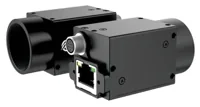
- Sensor format
- 1/2.7"
- Interface
- GigE
- Resolution
- Up to 3 MP
- Shutter
- Global
For host processing, compare industrial PCs through the vision PC finder. Benchmark acquisition, tracking and preview rendering together: a processor designation alone does not establish application throughput or display latency.
The LS-SYGKX8250U is a host-computer option to evaluate against your software requirements. Confirm operating-system support, graphics requirements, interface allocation and sustained workload behavior before selecting it.
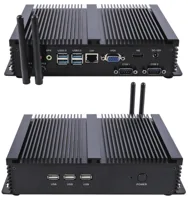
- LAN ports
- 2 LAN ports
- USB 3 ports
- 3-4 USB 3 ports
- Processor
- Intel Core i5
- Form factor
- Box PC
With smart cameras and vision sensors, processing may happen on the device rather than in your worker thread. Confirm that the documented interface exposes matching preview images, result identities and coordinate definitions. Do not assume that an inspection result and a separately fetched preview image represent the same exposure.
Verify the repair under deliberate stress
Use a repeatable acceptance test rather than watching a moving marker for a few seconds.
- Identity: Record image and result keys for every annotated preview. Accept no mismatched pairs.
- Geometry: Check the worked-example points against their calculated positions. For this synthetic test, choose a maximum rounding difference of 1 display pixel.
- Ownership: Retain an image while acquisition continues. Confirm that its pixels remain unchanged until release.
- Delay: Add a controlled worker delay of 50 ms. The preview should become older or omit unmatched annotations, not silently mislabel them.
- Ordering: Force worker completion out of sequence. Confirm that the display selection policy remains consistent.
- Reconfiguration: Change crop, orientation and viewport size. Clear incompatible results or select them using the correct configuration version.
- Restart: Restart acquisition and verify that previous-session results cannot appear.
Run the combined workload for 10 minutes while logging queue sizes and retained-buffer counts. They should remain within your declared limits. This is a useful regression test, not proof of indefinite stability or tracking accuracy.
Know when the usual answer is wrong
Drawing into a private image is acceptable when ownership is exclusive and no consumer needs an untouched copy. Exporting an annotated diagnostic image is one example. The problem is concurrent mutation or unintended modification of another consumer's input, not drawing itself.
Likewise, retaining every source frame is unsuitable when bounded memory and current preview response matter more than displaying every result. Select a documented drop policy and expose its consequences instead of allowing an unbounded backlog.
A preview is diagnostic information, not a validated safety function or motion-control feedback path. Its latency and presentation rules must not silently become machine-decision rules.
Before ordering, collect a sample image, frame/result identity logs, the transform chain and a workload measurement. Use the PC configuration step for host selection, or send those requirements through application support when you need help choosing the acquisition and processing arrangement.
Questions
Can a tracking worker draw directly onto a camera preview?
Only draw from a worker when the destination image is exclusively owned and the drawing interface permits that thread. For an interactive preview, publish a completed tracking result and let the designated rendering task compose the annotation. This avoids changing acquisition buffers or calling a graphics context from the wrong thread.
How do I match a tracking result to the correct image?
Use a shared source identity, preferably including the stream, acquisition session and sequence number. Retain the corresponding image until its result is ready, or omit the annotation if that image is unavailable. A timestamp helps diagnose timing but does not replace explicit frame identity.
Why does an overlay shift when the preview window changes size?
A resize can change both the scale and the empty margins around the image. Transform the marker using the same crop, orientation, scale and viewport offsets as the image. Repainting a frozen image with fixed synthetic points is a direct way to check this mapping.
Can I subtract a camera timestamp from a host timestamp?
Not without establishing their relationship. A device clock and a host monotonic clock can have different origins and rates. Use documented synchronization or a measured clock mapping for cross-domain comparisons. For host processing durations, subtract timestamps taken from the same host monotonic clock.
Will a faster industrial PC fix a trailing tracking marker?
A faster host can reduce processing backlog, but it cannot correct mixed frame identities, unsafe buffer reuse or an incorrect coordinate transform. Establish those invariants first. Then measure the combined acquisition, tracking and rendering workload to decide whether additional processing capacity is necessary.