
A GigE Vision camera can appear in discovery, answer feature reads and maintain a control connection while delivering no usable images. Those observations test different parts of the connection. For engineers integrating an acquisition application on Windows, the useful next step is to identify where the UDP image stream stops—not to disable the firewall. This procedure separates camera configuration, stream addressing, firewall policy and application reception, then shows how to verify a narrowly scoped correction.
Separate control access from image delivery
Discovery and feature access do not prove that the image receiver is reachable. GigE Vision control traffic and image streaming use different exchanges, and the stream destination must match the receiver opened by your application.
A firewall may permit replies to application-initiated control requests while blocking incoming image traffic. Equally, a camera may send images to an old destination, or the application may listen on the wrong adapter.
Start by classifying the symptom:
| Observation | What it establishes | What to check next |
|---|---|---|
| Camera appears in discovery | Discovery traffic reaches the discovery component | Control access and selected adapter |
| Feature reads succeed | At least some control exchanges work | Acquisition state and stream destination |
| Feature writes fail | Configuration is not yet reliable | Ownership, access state and valid feature values |
| Capture shows image packets, receiver reports none | Packets reached the capture point | Destination, receiver binding and firewall policy |
| Receiver reports packets but incomplete images | Some stream traffic reaches the receiver | Missing packets, buffers and transport capacity |
Record the acquisition library's counter definitions. A received-packet counter may count only accepted stream packets, rather than every datagram reaching the host.
For failures before the streaming stage, follow the camera-open diagnostic procedure. For a broader fault tree, use the intermittent acquisition troubleshooting guide.
Resolve configuration errors before blaming the firewall
An unsuccessful feature write and a missing image stream may be separate faults. Do not assume a firewall change will repair both.
- Close other camera applications cleanly, including background acquisition services that might retain control.
- Open the camera with the intended application and confirm its access mode.
- Stop acquisition before changing features that require an idle camera.
- Request a value within the feature's reported range and increment.
- Read the value back and record any returned error.
- Confirm that receive buffers are prepared and acquisition actually starts without an error.
A width change can fail because the camera is acquiring, the requested increment is invalid, or another process owns control. A successful heartbeat does not establish that every configuration command succeeded.
Also inspect trigger state. A camera waiting for an external trigger may correctly produce no frames. Where the application permits it, use a documented free-running configuration for the diagnostic test. Otherwise, record the expected trigger events and confirm their arrival.
The external-trigger timing guide covers trigger-dependent frame delivery. Feature-access problems belong in the GenICam feature-error guide, rather than being treated as evidence of blocked image traffic.
Check the active firewall profile and policy
Inspect the network connection carrying camera traffic, not merely the connection used for internet access. On a host with several adapters, those connections may have different firewall profiles.
Record the camera-facing adapter's address, subnet mask and active profile. Then inspect the corresponding firewall policy. A rule enabled for a private profile will not help a connection currently classified as public.
Do not change a network to a more trusted profile simply to make acquisition work. The classification should reflect the actual network and your organization's policy. On managed hosts, centrally applied rules may also limit what local administrators can change.
Check these details together:
- The rule is enabled for the profile actually applied to the camera connection.
- Its direction and action permit the required inbound stream traffic.
- The executable path matches the program currently receiving images.
- Local and remote address scopes include the intended endpoints.
- Protocol and port restrictions match the receiver's documented behavior.
- No applicable block rule or managed policy prevents delivery.
If policy is centrally managed, give the administrator the executable path, camera address, receiver endpoint and test time. That is more actionable than requesting a broad exception for all camera traffic.
Create the narrowest supported inbound rule
Use the acquisition software's documented network requirements. Some receivers use ordinary UDP sockets; others depend on a transport driver or service. A rule aimed at the graphical interface may not govern the component receiving images.
For a socket-based receiver, use the advanced firewall interface to create an inbound rule with the supported combination of program, protocol, endpoint and address scope.
- Identify the actual receiving executable, including its full installation path.
- Select UDP when that is the documented image transport.
- Restrict the remote address to the camera, or to an approved camera subnet when necessary.
- Restrict the local address to the camera-facing adapter when its addressing is stable.
- Restrict the local port if the receiver uses a documented fixed port or configurable range.
- Apply the rule only to the intended network profiles.
- Give the rule a descriptive name and record its purpose.
Do not assume the camera's control-service port is also the image receiver's local port. The receiver may select its streaming port when a session starts.
If that port changes between sessions, a narrowly scoped program rule may be more appropriate than opening a large port range. Confirm the supported approach before fixing a port or editing transport settings.
Firewall rules do not override every other host security mechanism. If the intended rule does not resolve a documented block, ask the administrator to review effective policy and endpoint-security logs rather than expanding the exception blindly.
Verify the stream destination and receiver binding
Next, compare what the camera is sending with what the application is listening for. Use the transport layer's diagnostics or documented camera features to inspect the stream destination address and UDP port.
The destination must identify the intended receiver on the camera-facing network. The receiving socket or transport component must accept traffic for that endpoint.
Check the following before changing packet size or bandwidth settings:
- The destination address belongs to the intended host adapter.
- The destination port matches the current receiver session.
- The receiver is not bound only to another adapter's address.
- The camera and receiver have compatible addressing and a valid return path.
- A previous application has not left a stale destination configuration.
- Multiple adapters do not create an ambiguous route to the same camera subnet.
Reconnect through the documented application workflow after correcting a destination mismatch. Avoid arbitrary register writes when the transport layer is responsible for configuring the stream.
If addressing or stream settings change after a restart, compare configuration snapshots using the camera power-cycle troubleshooting guide. If different applications behave differently, also review GigE Vision software compatibility checks.
Use packet capture as evidence, not proof of delivery
A packet capture can observe traffic at a different point from the receiving application's socket. Seeing packets in a capture therefore does not prove that firewall policy permitted them to reach the application.
Capture only on networks you are authorized to inspect. Select the camera-facing adapter and distinguish control exchanges from image-stream datagrams by their endpoints and protocol decoding, where available.
Compare three observations during the same test interval:
- Camera acquisition status or transmitted-frame diagnostics, if available.
- Captured stream traffic addressed to the expected host and port.
- Application receive counters and completed buffers.
If no image stream appears in the capture, investigate acquisition state, triggering, destination configuration and the physical path. Host inbound filtering is not yet established as the cause.
If correctly addressed stream packets appear but the application receives none, inspect firewall drop logs, effective rules and receiver binding. A logged drop matching the camera address, UDP destination and test time is stronger evidence than packet visibility alone.
If application counters increase but complete frames do not arrive, move to network-congestion diagnosis. Packet loss, payload interpretation and buffer handling require a different investigation from a receiver that sees nothing.
Work through a small, measurable test
Use a modest supported image configuration to reduce unrelated load. The following numbers are illustrative application settings, not specifications for a catalog camera.
Suppose the test uses an uncompressed image measuring 640 × 480 pixels, with one byte per pixel, at 10 frames per second.
This calculation excludes transport overhead, chunk data and retransmissions. Packed pixel formats require their actual payload calculation rather than an assumed whole number of bytes per pixel.
After the receiver reaches steady operation, a 10-second interval represents approximately 100 frames. Use the camera's reported rate if its actual timing differs from the requested rate.
Suppose the receiver reports local UDP port 50000. That port is only an example, not a universal GigE Vision setting. The capture must show image traffic addressed to that current port and the intended local address.
Interpret the results narrowly:
- No captured image traffic: return to acquisition, triggers and destination configuration.
- Captured traffic to the wrong endpoint: correct stream setup or adapter selection.
- Correct traffic plus matching firewall drops: correct the approved inbound rule.
- Received packets without completed images: inspect missing packets, payload size and buffers.
- Completed images without a display: inspect application processing and presentation.
Do not change exposure, packet size, firewall scope and adapter selection together. One controlled change per run preserves the value of the comparison.
Choose hardware only when the evidence points there
A firewall rule is not repaired by replacing a camera. Likewise, a cable fault is not established merely because the application reports no frames.
Inspect link state and interface error counters before ordering hardware. If the link drops or physical errors increase during acquisition, examine connectors, routing and cable suitability separately from host filtering.
Use the cables category and accessories finder to review connection options. Match the interface, connector, required length and motion conditions; a cable listed for another camera interface is not interchangeable.
For a new acquisition project, compare area scan cameras through the camera finder. These catalog examples are starting points for component selection, not claims that changing cameras resolves a host-policy problem.
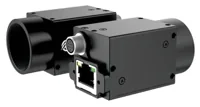
Review the LS-MV-133GM-GE catalog entry for its published specifications.
- Sensor format
- 1/2.7"
- Interface
- GigE
- Resolution
- Up to 3 MP
- Shutter
- Global
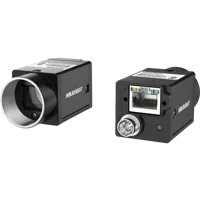
Review the MV-CU020-90GC catalog entry as a separate candidate, then verify software and application requirements.
- Sensor format
- 1/1.7"
- Interface
- GigE
- Resolution
- Up to 3 MP
- Shutter
- Global
Verify the correction and preserve the configuration
A successful correction produces complete images in the intended application while host protection remains enabled. A working preview in another application is useful comparison evidence, but not acceptance of your integration.
Use this closing checklist:
- [ ] Confirm the intended application owns the camera and starts acquisition without errors.
- [ ] Confirm the current stream destination matches the receiver endpoint.
- [ ] Confirm the approved rule matches the executable, addresses and active profile.
- [ ] Observe completed buffers, received packets and relevant error counters together.
- [ ] Repeat after closing and reopening the application, especially when receiver ports are dynamic.
- [ ] Repeat after a permitted host restart and camera power cycle.
- [ ] Retest at the required production payload and trigger rate.
- [ ] Remove temporary diagnostic exceptions and retain only the approved configuration.
Document the application version, receiver component, adapter address, firewall rule and test results. Repeat this validation after software upgrades or network changes using the software-upgrade checklist.
If the cause remains unclear, provide sanitized endpoint details, acquisition errors and matching counter snapshots through technical support. For a new system, begin with the camera configuration step after establishing the required imaging and software compatibility.
Questions
Why can a GigE Vision camera be discovered but deliver no images?
Discovery and feature reads exercise control exchanges, while image streaming uses a separately configured receiver endpoint. Successful control access therefore does not establish that images reach the application. Check acquisition state, trigger requirements, stream addressing and inbound policy before treating the camera as defective.
Does seeing image packets in a capture rule out the firewall?
No. A capture records traffic at its capture point, which may precede host filtering or application delivery. Confirm that the packets are image traffic for the current receiver endpoint, then correlate them with firewall logs and application counters during the same test interval.
Which inbound UDP port should the firewall rule allow?
Use the acquisition software's documented requirements rather than assuming one universal image port. The receiver may allocate its destination port when streaming starts. A supported program rule scoped to camera addresses can be preferable to a broad port exception when ports change between sessions.
Should the firewall be disabled temporarily to confirm the cause?
Keep protection enabled and inspect the active network profile, effective policy and logged drops. Use an approved exception limited to the actual receiver and required endpoints. On managed equipment, ask the administrator to implement the change rather than altering trust classifications or weakening unrelated rules.
Are failed feature writes and missing images always the same fault?
Not necessarily. Writes may fail because another process owns control, acquisition prevents modification, or the requested value violates a feature's range or increment. Resolve the returned configuration error first, then investigate image delivery separately with a known acquisition state.