
A manual alignment cursor should move across an image without changing its pixels, removing reference lines or disturbing the operator's view. This is useful when an operator needs to align a marker with a visible feature and record the displacement. Keep the cursor's position in image coordinates, retain its overlay handle, and let each button update that existing object. The result is a repeatable pixel-step interface rather than a sequence of newly drawn lines.
Keep the image, cursor and measurement separate
Build the interface around three independent elements: the acquired image, the graphics drawn above it, and the stored measurement state. The image supplies the evidence. The overlay shows the operator's selection. The state records what that selection means.
Store at least these values:
- Image or frame identifier, plus decoded image width and height.
- Reference column, which defines zero displacement.
- Current cursor column, expressed as an integer image coordinate.
- Persistent handle or identifier for the movable overlay.
- Calibration information, if physical units will be displayed.
Create the movable line when the measurement session starts. Keep its handle in application state that every button callback can access. A temporary variable inside the initialization routine is not enough if later callbacks cannot retrieve it.
Change only the cursor object's coordinates during a nudge. Do not clear the graphics container, redraw the background image or remove all overlays. Reference lines, regions and annotations should have separate handles and ownership.
The related guide to camera preview overlays explains diagnostic graphics. Here, the overlay instead represents an operator-controlled measurement whose reference and image identity must remain stable.
Define exactly what one pixel means
Choose an image-coordinate convention before writing the callbacks. A simple convention uses zero-based pixel centers:
- Horizontal coordinates run from
0throughW - 1. - Vertical coordinates run from
0throughH - 1. - A vertical cursor has the same horizontal coordinate at both endpoints.
Here, W and H come from the decoded image array. They are not the display window dimensions or necessarily the camera's full sensor dimensions.
For a default starting point, select the left of the two central columns when the image width is even:
A width of 1280 pixels therefore starts at column 639. The geometric midpoint is 639.5, but an integer cursor must choose a neighboring column. Either central column is acceptable if the convention is documented and consistent.
Some image viewers use one-based coordinates or custom axis extents. Convert those conventions explicitly at the rendering boundary. Do not mix a one-based reference with a zero-based cursor.
The reference does not have to be the image center. If an existing reference line defines the alignment datum, initialize x_reference from that line instead.
Update the persistent overlay from button callbacks
Both buttons should call the same movement function with a different signed increment. The left button requests -1; the right button requests +1. That function updates stored state, checks limits and refreshes the existing overlay.
The following is framework-neutral pseudocode, not a particular graphics library's API:
start_measurement(image):
    state.frame_id = image.identifier
    state.width = image.column_count
    state.height = image.row_count
    state.x_reference = floor((state.width - 1) / 2)
    state.x_cursor = state.x_reference
    state.cursor_handle = create_overlay_line()
    refresh_cursor()

on_left_button():
    move_cursor(-1)

on_right_button():
    move_cursor(+1)

move_cursor(delta):
    if measurement_is_not_active():
        return
    state.x_cursor = clamp(
        state.x_cursor + delta,
        0,
        state.width - 1
    )
    refresh_cursor()

refresh_cursor():
    if handle_is_invalid(state.cursor_handle):
        state.cursor_handle = create_overlay_line()
    update_line(
        state.cursor_handle,
        x_values = [state.x_cursor, state.x_cursor],
        y_values = [0, state.height - 1]
    )
    update_readout(state.x_cursor - state.x_reference)
Validate that the image has positive dimensions before starting the session. Serialize state changes on the interface's event thread, using the framework's documented mechanism.
If a graphics container is destroyed, its old handle may no longer be valid. Recreate only the missing cursor and restore its stored position. Do not reset the measurement to the center merely because the graphics object needed rebuilding.
Keep display coordinates out of the nudge calculation
Zoom changes how far a pixel appears to move on the screen, not the meaning of the measurement. At a display scale of 0.5 screen pixels per image pixel, two image-pixel nudges span one screen pixel.
For an axis-aligned view with zoom and translation, the simplified mapping is:
Always increment x_image. Let the viewer transform the overlay into display coordinates. Adding one screen pixel instead would produce different image displacements at different zoom levels.
When zoomed out, successive cursor positions can appear identical because the display cannot show every image column separately. Keep the numeric readout active and offer a magnified view for final alignment. A thin screen-rendered line is not evidence of subpixel measurement capability.
If you support mouse placement, use the viewer's inverse coordinate transform to find the image position. Then apply your documented rounding and boundary rules. Rotated views, mirrored images and inverted axes need the complete transform, not just division by a zoom factor.
Keep the viewport stable during button presses. Automatic axis fitting can make a stationary scene appear to move and confuse the operator's interpretation.
Choose boundary and button behavior deliberately
Clamping is usually the clearest boundary behavior. Once the cursor reaches an edge, further presses toward that edge leave its position unchanged. Disable the corresponding button or show an edge indicator.
Do not silently wrap the cursor to the opposite side. That turns a small requested movement into a large apparent displacement.
| Design choice | Recommended behavior | Reason |
|---|---|---|
| Single button activation | One image-column increment | Makes the interaction auditable |
| Image boundary | Clamp to the valid column range | Prevents invalid coordinates |
| Held button | Explicit, documented repeat behavior | Avoids unexpected multiple steps |
| Lost overlay handle | Recreate from stored state | Preserves the measurement |
| New image dimensions | Revalidate or restart the session | Prevents stale coordinate assumptions |
| Reset action | Return to the saved reference | Separates resetting from moving |
Decide whether keyboard autorepeat and press-and-hold buttons are allowed. If each deliberate press must mean exactly one increment, disable repeat behavior. Also avoid binding both button-down and button-click events to the same movement function.
A useful diagnostic is to log the requested increment, resulting cursor column and frame identifier. Unexpected jumps then become distinguishable from display scaling or repeated input events.
Calculate signed displacement and physical distance
The primary result is the difference between the current cursor column and the saved reference:
For the earlier example, moving from column 639 to column 646 gives:
Display the sign and document its meaning. For example, positive can mean increasing image-column index. Do not automatically interpret that sign as a machine-axis direction, especially with mirrored or rotated views.
If a calibrated, front-facing measurement plane spans approximately 320 mm across 1280 image pixels, the estimated horizontal scale is:
This calculation assumes approximately constant scale over the measurement region. It does not correct perspective, lens distortion or changes in object height.
For acquisition planning, requiring 8 pixels across a 2 mm feature over that field gives:
Use the camera resolution calculator to explore that sampling budget. Sampling alone does not establish measurement accuracy.
Before trusting physical units, establish calibration at the actual measurement plane. The guide to calibration target flatness explains why target geometry matters. If object height changes affect scale, review telecentric lenses for gauging before treating one scale factor as universal.
Freeze the measurement image and choose hardware by acquisition needs
For manual alignment, freezing a selected image is usually easier to validate than measuring a continuously changing preview. Store the frame identifier with the result so that the displacement remains associated with its evidence.
If live operation is necessary, make frame changes visible and define when the reference remains valid. A new region of interest, resized image or changed calibration should invalidate the old measurement unless the application explicitly transforms it.
Changing brightness can also shift the edge an operator perceives. The guide to contour position jitter under automatic exposure explains a related source of apparent position changes.
The cursor algorithm does not require a particular camera interface. Choose area scan cameras for the image acquisition task, using the camera finder to compare suitable options.
The LS-MV-133GM-GE provides a monochrome, global-shutter GigE option for an acquisition shortlist. Its cursor behavior still depends on the application implementation.
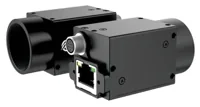
- Sensor format
- 1/2.7"
- Interface
- GigE
- Resolution
- Up to 3 MP
- Shutter
- Global
The MV-CS200-10UM provides a monochrome, rolling-shutter USB3 alternative. Evaluate scene motion and illumination when comparing acquisition approaches; a frozen display cannot remove distortion already captured in an image.
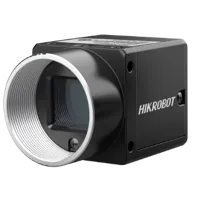
- Sensor format
- 1"
- Interface
- USB3
- Resolution
- 16-25 MP
- Shutter
- Rolling
For deployment on vision controllers, confirm that the selected software runtime supports persistent graphics objects, button callbacks and access to decoded image dimensions. Hardware selection does not establish those software capabilities.
Verify preservation, counting and coordinate consistency
Use a saved test image containing an unambiguous vertical edge and several permanent annotations. Test the interface before connecting it to production image acquisition.
- Record the initial reference column and cursor column. Confirm that the displacement reads zero.
- Activate the right button 10 times. The reported displacement should be
+10unless a boundary is reached. - Activate the left button 10 times. Confirm return to the original column and zero displacement.
- Zoom and pan the view. Verify that the stored image coordinate does not change.
- Move to each boundary. Further outward presses must leave the value unchanged.
- Check that every permanent annotation remains present and unchanged.
- Compare the underlying image array before and after movement. Overlay operations must not alter its pixel values.
- Close and reopen the view. Confirm either documented restoration or an explicit new measurement session.
- Change image dimensions. Confirm that stale coordinates are rejected, reset or deliberately remapped.
Also test rapid alternating inputs. A missed repaint is different from a missed state update: the final stored column and readout must still agree after the event queue settles.
Export the original image and measurement metadata separately. If an annotated screenshot is also needed, label it as a rendered view rather than an untouched acquisition.
Know when a pixel-step cursor is the wrong tool
A full-height vertical line measures horizontal displacement only. It does not measure the shortest distance to a sloped edge, follow a curve or determine two-dimensional translation.
Manual alignment also depends on feature definition. A broad bright region has several plausible target columns unless you specify its center, left boundary or another reproducible datum. Write that choice into the operating procedure.
An integer cursor provides integer-column selection, not guaranteed one-pixel accuracy. Blur, contrast, calibration and operator judgment can create larger uncertainty. For tighter requirements, validate an appropriate edge-fitting method and report uncertainty separately from display precision.
Before deployment or ordering, check:
- The target feature and reference datum are clearly defined.
- The expected displacement fits inside the available image region.
- The image sampling supports the required decision.
- Calibration matches the measurement plane and image configuration.
- The selected runtime can preserve overlays independently of image updates.
- The interface reports image displacement, not an unvalidated machine-motion command.
Start acquisition selection with the camera configurator. For help matching the image scale, scene motion and deployment runtime to this measurement workflow, use applications support.
Questions
How can the cursor move without deleting the image or other lines?
Keep the image data and cursor graphics in separate layers. Retain the cursor's graphics handle in shared application state, then update only its coordinates. Avoid clearing the view or redrawing every annotation during a button callback, because those operations can remove unrelated graphics or reset the viewport.
Why does a one-pixel step sometimes look as though nothing moved?
A pixel step refers to the acquired image grid, while the monitor shows a scaled rendering of that grid. When the image is reduced, adjacent image columns may share the same visible screen position. Use the coordinate readout and magnify the region rather than increasing the movement increment.
Can the cursor report displacement in physical units?
Yes, if you have a valid image-to-object calibration for the measurement region. Multiply the signed pixel displacement by the applicable horizontal scale. A single scale factor is insufficient when perspective, distortion or varying object height changes the relationship between image position and physical distance.
Should the cursor position be retained when a new image arrives?
Retain a measurement only when its reference, coordinate mapping and calibration remain applicable. Store the frame identifier with each result. If the image dimensions, region of interest or scene reference changes, require a fresh session or apply an explicitly validated coordinate transformation.