
A camera that answers ping but never appears in a Linux vision application has passed only a basic network test. Discovery, transport loading, local services, and camera control still need separate checks. This troubleshooting path is for persistent failures before image acquisition, especially when applications disagree about whether the camera exists. You will identify the first failing stage, collect evidence, and make targeted changes without disabling host security or replacing working hardware prematurely.
Identify the first failing stage
Treat discovery and connection as separate operations. An application may enumerate a camera successfully but fail when requesting control. Another application may fail earlier because it cannot load its transport producer.
Record the exact error, application version, Linux distribution, kernel version, and transport-package version before changing anything. Include whether the failure started after an update, reboot, network change, or software installation.
| Observation | What it establishes | Next test |
|---|---|---|
| Ping answers | Something at that address answers ICMP | Confirm identity, interface, and route |
| Discovery request leaves, but no reply returns | The application is transmitting discovery | Check broadcast path, filtering, and camera response |
| Discovery reply reaches the host, but no device appears | The network delivered a reply | Check producer loading and application logs |
| Device appears, but opening fails | Enumeration worked | Check control ownership and transport initialization |
| Device opens, but acquisition fails | Discovery and basic access worked | Troubleshoot streaming separately |
An old connection file may contain an obsolete interface selection or device identifier. Test fresh enumeration before interpreting a saved-configuration error as a camera failure.
For the broader relationship between applications, transport layers, and devices, start with GigE Vision camera software compatibility checks. The tests below focus specifically on locating a persistent Linux discovery failure.
Confirm the address belongs to the intended camera
Begin with the smallest practical topology: a camera connected directly to the intended network interface, or through a known switch. Make topology changes only during an approved maintenance window.
The following commands use an example host interface named enp3s0 and an example camera address. Substitute your actual interface and camera address before running them:
ip -brief address
ip route get 192.168.50.20
ip neigh show to 192.168.50.20
ip -s link show dev enp3s0
Check the outgoing interface and source address reported by the route lookup. A VPN, wireless interface, container network, or overlapping subnet can make traffic leave through an unexpected path.
Compare the neighbor entry with the camera identity recorded during commissioning. A ping response alone cannot distinguish the intended camera from another device using the same address. On an isolated camera connection, disconnecting the camera and checking whether responses continue can help expose an address conflict.
Work through the subnet arithmetic
For a conventional directly connected setup, the host and camera should normally share the intended subnet. Consider these example settings:
The matching network addresses show that these example settings place both devices on the same subnet. This does not prove that the correct physical interface is selected or that discovery traffic is permitted.
Avoid assigning the same subnet to multiple independent host interfaces unless the routing design deliberately supports it. A setup that appears equivalent on another operating system may still have different route selection and filtering behavior.
Observe discovery traffic before changing firewall rules
GigE Vision discovery and control use the GigE Vision Control Protocol, commonly abbreviated GVCP. Requests use UDP destination port 3956. Broadcast discovery normally depends on the local network path; a successful routed ping does not prove that broadcast discovery will work.
Use an authorized packet capture on the camera-facing interface while performing one discovery attempt. Filter for GVCP traffic and record the request, any reply, and their interface addresses. Keep captures limited to the relevant interface and maintenance period.
Interpret the result in order:
- No request appears: check the application's selected interface, loaded producer, and startup errors. The capture interface or filter could also be wrong.
- A request appears without a reply: check camera power, link state, address conflicts, switch configuration, and applicable filtering.
- A reply reaches the host but the application lists nothing: examine local filtering and transport logs. Capture visibility alone does not prove delivery to the application's socket.
- The application lists the device: move to control access rather than repeating discovery changes.
Host firewalls can distinguish incoming replies, broadcast traffic, and traffic associated with different interfaces. A rule that merely permits inbound destination port 3956 may not describe the complete exchange, because replies can target host-side ports.
Leave jumbo-frame tuning until discovery and control work. It primarily addresses image-stream transport, not the usual cause of a missing discovery response.
Verify the GenTL producer, not just its installation
A GenTL producer is a transport module that a compatible application loads to communicate with devices. On Linux, the module commonly has a .cti extension. Installing a package does not prove that the application has selected or successfully loaded its producer.
Check the application's own transport configuration first. Some applications use an explicit producer path; others use standard environment variables or their own search rules.
For a process intended to use a 64-bit producer, these commands provide useful host context:
uname -m
getconf LONG_BIT
printf '%s\n' "$GENICAM_GENTL64_PATH"
The host architecture alone does not establish the architecture of the application process. Confirm that the application, producer, and required libraries are compatible using their documented installation requirements.
An empty environment variable is not automatically an error. The application may load a producer through another documented mechanism. Conversely, a populated variable does not prove that the referenced producer loads successfully.
Inspect application logs for missing shared libraries, unsupported operating-system versions, permission failures, and producer initialization errors. Obtain packages and installation instructions only from the manufacturer or an authorized distributor.
Make application comparisons controlled
If one application discovers the camera and another does not, record the exact producer path and version used by each. Different applications may load different copies, even when their settings look similar.
Run one application at a time and start each from a known environment. A desktop launcher, terminal session, and background service can inherit different environment variables and permissions.
Do not repeatedly reinstall software before checking those differences. Reinstallation may leave saved application settings or older producer paths unchanged.
Check manufacturer-documented transport services
Some transport packages require a local service or helper process; others do not. Establish whether your installed package requires one before treating a missing daemon as the explanation.
Use the manufacturer's Linux documentation to identify the exact service name, required startup conditions, and supported diagnostic procedure. Do not substitute a service name taken from a different software package.
On systems using systemd, these commands offer an initial view of failed units and boot warnings:
systemctl --failed
journalctl -b -p warning
Neither command is a complete transport-service test. A required service might be stopped without being marked failed, while a running service might still report initialization problems in its own log.
For the documented service, inspect its status and logs around the time of the discovery attempt. Look for binding failures, missing dependencies, startup ordering problems, and permission errors.
If the manufacturer prescribes a restart, first stop camera clients and place the inspection system in its approved maintenance state. Restart only the documented component, then repeat the same discovery test.
If restarting restores operation, investigate why initialization failed. A recurring startup-order or dependency problem needs a documented correction, not an unattended restart loop.
Separate device enumeration from control access
A discovered camera is not necessarily available for exclusive control. Another application, a background acquisition process, or a second authorized host may already own the control connection.
Close the manufacturer's viewer and other camera applications normally. Check for background acquisition services through the operating system's documented process and service tools. Coordinate with other users before stopping shared processes.
Then attempt a connection from a single client. Record whether it requests exclusive control, read-only access, or another documented access mode. Device support and application behavior determine which modes are available.
A previous client that terminated unexpectedly may leave ownership unresolved until a documented heartbeat timeout expires. Use the manufacturer's release or recovery procedure. Do not attempt to circumvent ownership checks, authentication, or access controls.
If an alternate application discovers the camera but also cannot open it, the evidence narrows the problem. It does not prove that the producer installation is healthy: enumeration can succeed while later transport initialization fails.
Once the device opens, distinguish feature-access errors from connection failures. For that later stage, use GenICam feature-access error diagnosis rather than changing network settings again.
Verify recovery beyond a device appearing in the list
Use a repeatable acceptance sequence after each targeted correction:
- Start with all camera clients closed and document the current network configuration.
- Launch one application and record whether discovery returns the expected device identity.
- Open the camera, read an available identification feature, and close it normally.
- Repeat the open-and-close sequence three times to check control release.
- Acquire images using a documented basic configuration, then test the production configuration separately.
- During an approved window, repeat the test after the relevant service restart or host reboot.
Three repetitions are a practical diagnostic check, not a reliability qualification. Record timestamps so application errors can be matched to service logs and packet captures.
A device appearing in the list is only a discovery result. Successful image delivery adds further dependencies, including stream destination, packet handling, buffering, and application timing.
If discovery and opening now work but acquisition later becomes unreliable, continue with intermittent camera acquisition failure troubleshooting. Keeping those stages separate prevents a streaming problem from sending you back through unrelated discovery changes.
Choose hardware only after confirming software support
Do not replace a camera merely because another application or operating system behaves differently. First obtain a supported combination of Linux release, application version, producer, and required local services.
When adding a new device, use area scan cameras and the camera finder to select the physical interface and imaging characteristics. Then verify Linux support for the exact software stack separately.
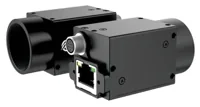
The LS-MV-133GM-GE is a monochrome GigE camera with a global shutter and C-mount.
- Sensor format
- 1/2.7"
- Interface
- GigE
- Resolution
- Up to 3 MP
- Shutter
- Global
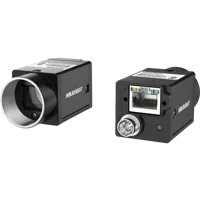
The MV-CU020-90GC is a color GigE camera with a global shutter and C-mount.
- Sensor format
- 1/1.7"
- Interface
- GigE
- Resolution
- Up to 3 MP
- Shutter
- Global
These hardware examples do not establish compatibility with a particular Linux distribution or GenTL producer. Confirm the exact support requirements before ordering or standardizing an installation.
For systems built around vision controllers, apply the same checks to the controller's operating environment and camera software. Camera-port availability alone does not establish that the required transport package is installed, licensed where necessary, or supported.
If the application needs a different host platform, specify the operating-system and transport requirements before selecting hardware. More processing power will not correct a missing producer or an incorrectly selected network interface.
Preserve the evidence and prevent recurrence
Keep a short commissioning record that separates configuration from observations:
- Network identity: camera address, subnet mask, expected device identity, host interface, and selected route.
- Software identity: application version, producer path and version, Linux release, and relevant package versions.
- Service requirements: documented unit names, startup dependencies, and approved diagnostic commands.
- Access ownership: which application normally controls the camera and how it releases control.
- Security configuration: approved camera-network rules and the reason for each exception.
- Recovery evidence: discovery result, connection result, image result, timestamps, and reboot-test outcome.
Before escalating, summarize the first failing stage in one sentence. For example: discovery replies reach the camera interface, but the application reports a producer initialization error. That is more actionable than reporting only that ping works.
Change one variable at a time and retain a rollback path for network and software changes. After recovery, remove temporary diagnostic settings and confirm that production access remains appropriately restricted.
For help choosing compatible camera hardware or reviewing the evidence, send the configuration and first failing stage through technical support. If you are building a new inspection system, start with the camera configurator after documenting the required Linux software support.
Questions
Why can a GigE Vision camera answer ping but remain undiscovered?
Ping tests ICMP reachability, not the complete camera communication stack. Discovery can still fail because traffic uses the wrong interface, broadcast packets are filtered, or the application cannot initialize its transport producer. First verify that the responding address belongs to the intended camera, then observe a discovery attempt on the camera-facing interface.
Does discovery in another application prove that the transport software works?
It confirms that the successful application can enumerate the device through its own configuration. It does not validate another application's producer selection, environment, or permissions. Compare the exact transport module paths and versions, close competing clients, and distinguish successful enumeration from successful control access.
Should a transport service be restarted when discovery fails?
Only when the installed transport package documents a required service and its approved restart procedure. Collect status and logs first, close camera clients, and follow the machine's maintenance procedure. If a restart helps, investigate startup dependencies or initialization errors so the same failure does not return after reboot.
When should the camera or host hardware be replaced?
Camera replacement is usually premature until the network path, supported software combination, required services, and control ownership have been checked. A different operating system successfully using the same device is useful evidence, but it does not validate the Linux configuration. Confirm support for the exact application and producer before selecting replacement hardware.