
An image-sensor initialization error can stop inspection software before it produces a single frame. For an embedded or board-level installation, begin with the physical assembly, power arrangement and interface compatibility—not the blob detector or measurement algorithm. This troubleshooting sequence helps you separate a connection problem from a host-interface fault, verify recovery with a minimal acquisition test, and collect useful evidence before requesting replacement hardware.
1. Identify which part of initialization failed
A host detecting a camera interface does not prove that the camera has initialized its image sensor. Depending on the architecture, the host may communicate with a controller while the sensor connection remains faulty. Conversely, a missing host device can prevent acquisition before the software attempts sensor initialization.
Record the exact error, when it appears, and whether the installation has ever delivered a valid image. Save the complete startup log rather than only the final exception.
Use the observable behavior to choose the next check:
| Observable symptom | What it suggests | First useful test |
|---|---|---|
| Host does not enumerate or discover the camera | Power, data connection, host configuration or driver problem | Check the documented power and host connection |
| Host detects the camera, but sensor initialization fails | Camera-module connection, unsupported configuration or internal hardware problem | Inspect the powered-off assembly and confirm compatibility |
| Camera initializes, but no frames arrive | Acquisition mode, trigger, exposure or transport problem | Run a minimal acquisition test without external triggering, where supported |
| Frames arrive, then acquisition stops | Intermittent power, connection, timing or transport problem | Capture logs during a controlled repeatability test |
These are starting points, not conclusive diagnoses. An application can also present several underlying failures through the same error message.
The intermittent acquisition troubleshooting guide addresses installations that run and then fail. Here, the priority is a camera or sensor that has never completed initialization.
2. Power down before inspecting the module
Stop acquisition and shut down the equipment using its documented procedure. Disconnect camera power and any additional power source feeding the module. Account for host-supplied power as well as separate supplies.
Do not assume that closing the application removes power. Wait for the discharge interval specified in the equipment documentation before handling the assembly.
For accessible, serviceable connections, inspect the following in order:
- Module orientation. Compare the assembly with the documented orientation, connector keying and board alignment. Do not rely only on the boards appearing parallel.
- Connector engagement. Look for uneven insertion, a visible gap or an edge seated deeper than the opposite edge. Never force a connector to eliminate a gap without confirming its intended engagement.
- Latches and retainers. Where the design uses a latch, check that it operates and closes as documented. A ribbon cable can look inserted while its contacts remain misaligned.
- Cable contact direction. Confirm which side of a flexible cable carries exposed contacts and which direction the connector requires. Similar-looking cables can differ electrically.
- Mechanical interference. Check whether a spacer, enclosure wall, mounting screw or cable bend prevents full engagement.
- Visible damage. Look for bent contacts, cracked housings, damaged cable ends or conductive debris. Stop rather than repeatedly reconnecting a visibly damaged part.
If reseating is permitted, support the assembly and use the documented insertion method. Avoid pressing on the sensor package, optical window or unsupported board areas.
Reassemble the required retainers before restoring power. A successful test while manually holding the boards together is not an acceptable installation.
3. Confirm power and electrical compatibility
A connector that fits is not evidence of electrical compatibility. Confirm the exact module, carrier, cable and hardware revision against their documentation.
Check the required supply voltage, polarity, current capability and power-up sequence. Do not infer these from another camera with a similar connector. Also check whether a cable supplies power, carries data only, or requires a separate power connection.
Startup can expose a marginal power arrangement even when an indicator illuminates. An indicator confirms only its own operating condition; it does not establish that every sensor supply is correct.
Use this sequence without changing multiple variables:
- Restore the documented power arrangement, removing undocumented adapters or extensions where practical.
- Check accessible power connectors for secure engagement with the equipment switched off.
- Compare supply requirements with the supply's documented output and the complete system load.
- Review any available undervoltage or startup diagnostics.
- If electrical measurements are necessary, have qualified personnel use the documented test points and safety procedure.
Do not probe fine-pitch connectors by improvising contact points. A slipped probe can create a new fault that obscures the original problem.
For replacement wiring, use the camera cables category and accessories finder to identify candidates. Confirm both connector ends, pin assignment, power arrangement and intended use before selecting a cable. The available catalog information alone does not establish compatibility with an unspecified embedded module.
4. Separate host-interface faults from sensor faults
Use the manufacturer's supported acquisition utility before testing through a larger application framework. This reduces uncertainty about application settings, package versions and processing code.
For a USB connection, check whether the operating system recognizes the device and whether the supported utility can open it. Follow the documented connection topology. An adapter or hub introduces another variable, so remove it during diagnosis when the supported arrangement permits a direct connection.
For an Ethernet connection, distinguish physical link status from camera discovery. A link indication does not prove that addressing, discovery or the acquisition software is configured correctly. The GigE Vision software compatibility checks provide a separate workflow when that standard applies to your camera.
For a sensor connected directly to a carrier, verify the documented sensor interface and supported module revision. Host-side USB or Ethernet troubleshooting may not apply to that internal connection.
A missing software feature is also different from an undetected sensor. If the camera opens but an application fails while accessing a feature, use the GenICam feature-access troubleshooting guide where applicable. Do not treat every feature-access error as proof of a loose module.
Keep a simple observation log: host discovery, camera open, sensor initialization, acquisition start and first valid frame. The last completed stage makes a support request much more specific.
5. Verify recovery with a minimal acquisition test
After correcting a documented connection or configuration issue, test image acquisition before restoring inspection logic.
- Start from a controlled power cycle. Follow the supported shutdown and startup procedure, then capture the startup log.
- Open the camera in the supported utility. Confirm that initialization completes without retry loops or recurring errors.
- Choose a supported basic configuration. Where available, select a modest image size and a simple pixel format. Do not assume arbitrary image dimensions are accepted.
- Remove trigger dependencies. Use continuous acquisition or a documented software-trigger mode where supported. Leave the production trigger sequence out of this initial test.
- Capture and inspect images. Use an illuminated, stationary target. Check that images contain meaningful scene detail rather than accepting a frame counter alone.
- Repeat startup. Confirm that recovery survives complete, documented power cycles without touching the module between tests.
Set a measurable test target. For example, collect 100 consecutive frames at a supported test rate of 5 frames/s:
This excludes discovery and startup time. It is a convenient diagnostic observation window, not a reliability qualification or a required camera operating point.
Record incomplete frames, transport errors and unexpected disconnects. If the camera initializes but receives no external triggers, follow the hardware-trigger frame-rate checks rather than reopening the module immediately.
Once basic acquisition passes, restore the production image size, exposure, trigger arrangement and processing stages individually. A fault that returns after a particular change is easier to isolate than one introduced by restoring every setting together.
If frames arrive but become corrupted after restarting the camera, the power-cycle image-corruption guide addresses that different symptom for applicable GigE Vision systems.
6. Change firmware only with a specific reason
Repeated firmware changes can erase useful evidence and add compatibility uncertainty. First establish the installed firmware version, hardware revision and acquisition-software version.
Consider an update only when the manufacturer's documentation identifies a relevant fix, a required compatibility version or a supported recovery procedure. Obtain software and firmware from the manufacturer or an authorized distributor. Match the package to the exact hardware and follow its power and recovery requirements.
Do not substitute firmware from a similar-looking module. Do not interrupt an update or improvise a recovery method if the documented procedure fails.
If initialization still fails, provide support with:
- Exact camera-module and carrier identification, including hardware revisions.
- Firmware, driver and acquisition-utility versions.
- Connection and power arrangement, including adapters.
- Full startup logs and the last initialization stage that succeeds.
- Results before and after the permitted reseating procedure.
- Whether the same fault occurs in the supported minimal acquisition utility.
If substitution testing is authorized, change only one compatible component at a time. Stop testing if there is visible damage, abnormal heating or an unresolved electrical mismatch.
7. Choose replacement hardware by architecture, not appearance
A replacement board-level camera is an integration decision, not simply a way to eliminate a connector error. Check mechanical fit, interface, lens mount, power, triggering, software support and environmental protection before ordering.
The board-level cameras category and camera finder help separate candidates by interface and optical configuration. The following catalog examples illustrate different choices; neither is established as a replacement for your existing module.
The MV-CB060-10UM-B is listed with USB3, a rolling shutter and no lens mount (bare board).
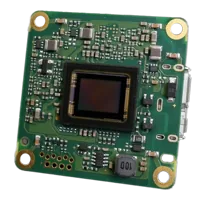
- Sensor format
- 1/1.8"
- Interface
- USB3
- Resolution
- 6-10 MP
- Shutter
- Rolling
The MV-CB016-10GM-M-W is listed with GigE, a global shutter and an M12 lens mount.
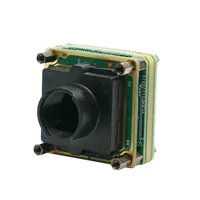
- Sensor format
- 1/2.9"
- Interface
- GigE
- Resolution
- Up to 3 MP
- Shutter
- Global
Interface selection affects host connectivity and integration work. Shutter selection affects how motion appears during exposure. Lens-mount selection affects the optical assembly. None of these properties, by itself, establishes compatibility with a particular carrier or internal connector.
For moving inspection targets, assess shutter behavior and exposure requirements separately from the initialization fault. For an embedded enclosure, check the complete camera, optics, cable bend space and mounting arrangement—not just the board outline.
8. Close the fault with a repeatable checklist
Before returning the installation to service, complete a short acceptance record:
- Assembly: orientation, connector engagement and retainers match the documented arrangement.
- Power: supply, polarity and startup requirements have been checked against the actual hardware.
- Compatibility: module, carrier, firmware and acquisition software form a supported combination.
- Acquisition: initialization succeeds and a consecutive frame sample contains valid images.
- Restart: recovery survives repeated documented power cycles without physical adjustment.
- Production settings: triggering and inspection processing have been restored and checked separately.
- Documentation: the final configuration and diagnostic logs are saved for future comparison.
Do not accept a connection that works only when pressed, flexed or held at an angle. That result points to an unresolved mechanical or connection problem, not a completed repair.
For a new integration, start with the camera configurator. For an existing assembly with uncertain compatibility, send the hardware identification and test results through technical support before selecting replacement parts.
Questions
Does an image sensor not detected error mean the sensor is damaged?
Not necessarily. The message can result from an incorrectly seated module, an incompatible hardware combination, an unsuitable power arrangement or a software compatibility problem. Establish which initialization stage fails, inspect permitted connections with power removed, and test with the supported acquisition utility before concluding that the sensor needs replacement.
Does host detection prove that the camera module is connected correctly?
No. Host discovery may establish communication with a camera controller without confirming that its internal sensor connection is working. It is useful evidence, but the stronger check is successful sensor initialization followed by acquisition of valid scene images in the supported utility.
Should firmware be updated before reseating a camera module?
Do not use a firmware change as the first diagnostic step. Confirm seating, power, hardware compatibility and the installed versions first. Update only for a documented reason, using the exact supported package and procedure supplied by the manufacturer or an authorized distributor.
Can a replacement cable be selected by connector appearance alone?
No. Matching connector shape does not establish matching pin assignments, supply arrangements, contact orientation or interface requirements. Identify the complete connection specification before ordering. When that information is unavailable, ask for compatibility confirmation rather than trying cables until the camera responds.
How should recovery be checked after reseating the module?
Capture consecutive valid images in a supported basic mode, then repeat the documented startup sequence without touching the assembly. Restore production settings individually and record the results. A short diagnostic capture demonstrates basic operation, but production acceptance also needs testing under the installation's actual operating conditions.