
A USB barcode reader can deliver decoded text without delivering camera images, but the receiving method depends on its configured interface. Some readers type into the active application; others expose a serial port or require a documented device API. This explainer helps you identify that interface, assemble complete scans, and test your application before connecting barcode input to production records.
Identify the USB interface before writing code
Start with the reader's manufacturer documentation and the operating system's device information. A USB connector describes the physical connection, not the application protocol. Do not assume every USB reader behaves like a keyboard or provides a serial port.
Common possibilities include:
- Keyboard-emulation input: decoded characters arrive through the operating system's keyboard input path.
- Virtual serial input: the operating system exposes a serial port that your application opens and reads.
- A documented device interface: communication uses a supported API, driver or non-keyboard HID protocol.
A device may expose multiple functions. Finding a HID entry does not, by itself, prove that ordinary keyboard text input is available.
For an initial keyboard test, open a local plain-text editor, select its text area, and scan a harmless test label. If text appears, record its characters, capitalization and apparent line ending. Use an application event log to establish the exact terminator; a visible line break alone cannot distinguish every input sequence.
If a serial port appears instead, identify it by comparing the device list before and after connection. Obtain any required software from the manufacturer or an authorized distributor. Change interface settings only through documented procedures, then repeat device identification.
Choose the receiving method that matches the interface
The application must consume the interface the reader actually presents. An image-acquisition API is not automatically an interface for decoded barcode text.
| Observed interface | Application receiving method | Main integration risk | First verification |
|---|---|---|---|
| Keyboard emulation | Text-input control and submission event | Focus sends data to the wrong control | Scan into a dedicated field |
| Virtual serial port | Serial receive callback and persistent buffer | Reads split or combine records | Log incoming bytes and delimiters |
| Documented device API | Supported API and its event model | Assuming undocumented message behavior | Follow the documented receive example |
Keyboard input is usually convenient for a supervised data-entry screen. Serial input can avoid text-field focus, but it requires explicit port ownership, framing and recovery logic. A device API may provide additional metadata; verify that capability in the documentation rather than assuming it exists.
For visible application-state diagnostics, the camera preview overlays guide shows the related practice of exposing what an application is doing. For barcode capture, display the active input mode, capture status, queue depth and last validation result instead of image-tracking state.
Capture keyboard input through a dedicated field
Use a text-entry control rather than a numeric control. An identifier such as 000428 must retain its leading zeros. Automatic number conversion can silently change a valid identifier before validation begins.
A practical keyboard-input sequence is:
- Activate the scan screen and visibly select its capture field.
- Accumulate text in that field without committing partial values.
- Wait for the configured submission event, such as Enter.
- Validate the completed value and transfer it to the processing queue.
- Clear the field after acceptance and indicate readiness for another scan.
Confirm how your application framework handles Enter and Tab. Enter may submit an entire form, while Tab may move focus before your capture logic runs. Avoid attaching the same scan to both a key handler and a form-submit handler, which can create duplicate records.
Keyboard layout also matters. Test punctuation, upper- and lowercase letters, and any characters used in real identifiers. A reader's keyboard-country configuration and the host layout must agree where the emulation depends on key mapping.
For unattended capture, ordinary keyboard emulation is often the wrong choice because focus can move to a dialog or another application. Consider a documented per-device input method, serial mode or supported API when the selected reader provides it.
Frame serial data across receive events
A serial receive event means that bytes are available. It does not necessarily mean that one complete barcode has arrived. One scan may span several callbacks, and one callback may contain several scans.
Keep a persistent receive buffer. Append each incoming chunk, extract every complete record, and retain the unfinished remainder. Define the delimiter from the reader's documented configuration rather than guessing from a terminal display.
For example, a reader configured to terminate each record with CR LF uses two control bytes. The first callback might end with CR, while the next starts with LF. Your parser must recognize the delimiter across that boundary.
A suitable receive loop follows this pattern:
on bytes received:
    append bytes to the receive buffer
    while a complete delimiter exists:
        remove one framed record
        validate and enqueue that record
    enforce the maximum unfinished-record length
Set the documented communication parameters where applicable, including baud rate, parity and flow control. A virtual serial device may expose settings differently from a physical serial link; follow its documentation.
Configure a maximum record length and an incomplete-record timeout. Choose both from the expected payload and measured operating behavior. On timeout, mark the partial record as failed; do not quietly turn an unfinished identifier into a valid scan.
Only one component should own parsing for a port. Competing terminal software or a second application instance can prevent connection or obscure which application received the data.
Validate complete scans before accepting them
Treat transport completion and business acceptance as separate events. A delimiter closes a record; it does not prove that the identifier belongs to the current work order.
Apply validation in a deliberate order:
- Remove only the documented transport prefix and suffix.
- Decode the payload using the configured character encoding.
- Check permitted length and character rules.
- Apply an application-level check digit or lookup when the identifier scheme requires it.
- Associate the result with the correct job, station or transaction.
- Commit it once and provide application-level feedback.
Do not indiscriminately trim whitespace. A trailing transport terminator is different from a space that legitimately belongs inside the payload. Likewise, do not assume that every printed character beneath a barcode is necessarily part of its encoded content.
Define duplicate handling from the process. Two identical scans might represent an accidental repeat, or they might represent two items carrying the same product code. A universal suppression timer cannot decide that distinction correctly.
A successful decode indication from the reader is not proof that your application stored the record. Provide separate accepted, rejected and unavailable states. Treat barcode content as data, never as executable commands or database query text.
Size the buffer with a worked example
Buffering should cover short processing delays, not hide a receiving application that cannot sustain the input rate. For a simple byte-oriented estimate, use:
Suppose a test application receives 24 ASCII payload characters followed by a two-byte terminator. The expected burst rate is 20 scans per second, and processing can pause for 0.5 seconds.
The arithmetic is:
- Record size: 24 + 2 = 26 bytes.
- Records arriving during the pause: 20 × 0.5 = 10 records.
- Queue storage for those records: 10 × 26 = 260 bytes.
- Allowing one additional unfinished record: 260 + 26 = 286 bytes.
This estimates content storage only. Queue objects, timestamps, logging and encoding conversions consume additional memory. Variable-length records require a maximum-size assumption, and multibyte text does not have one byte per character.
Use a bounded queue with an explicit overflow response. Stop accepting new work, raise an alarm or apply documented flow control where supported; never silently overwrite unread scans. If processing remains slower than arrival, increasing memory only postpones overflow.
These calculations concern application queues, not imaging resolution or lens geometry, so an optical calculator is not applicable.
Select readers without assuming their USB behavior
Choose the physical format around the task, then verify the exact communication mode before ordering. Handheld code readers suit operator-present scanning, while fixed code readers serve installed reading positions. Neither format alone establishes the host protocol.
The LS-H920-S-BT-01-01 is cataloged with a USB interface and a wireless connection. Confirm its supported host modes and the behavior of its receiver for your intended application.
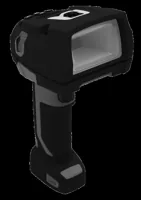
- Resolution
- Up to 3 MP
- Shutter
- Global
- Interface
- USB
- Connection
- Wireless
The LS-R172-S1 is a fixed reader cataloged with a USB interface and a global shutter. Those facts do not establish whether its decoded data reaches your application as keyboard input, serial data or another protocol.
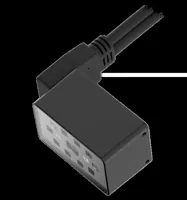
- Resolution
- Up to 3 MP
- Shutter
- Global
- Interface
- USB
Use the camera and code-reader finder to narrow the hardware selection. Before committing, request confirmation of interface modes, framing options, supported operating systems and available integration documentation for the exact configuration.
Test normal operation and failure recovery
Run acceptance tests with known labels and compare sent identifiers against accepted application records. A useful bench test is 100 scans with an exact count comparison, followed by tests that deliberately disturb the receiving application.
Use this checklist:
- Payload preservation: include leading zeros, mixed case, punctuation and the longest expected identifier.
- Record framing: verify the configured terminator and test split delimiters in the serial parser.
- Burst handling: feed several completed records together and verify that none remain stranded in the buffer.
- Focus changes: open a dialog during keyboard capture and confirm that the application clearly reports loss of readiness.
- Connection loss: disconnect and reconnect the reader, then check port selection and parser reset behavior.
- Processing delay: pause downstream work and confirm that queue limits produce a visible fault rather than data loss.
- Duplicate events: verify that one scan cannot be submitted by two application handlers.
Log receive time, record completion time, validation outcome and commit outcome. These separate a transport problem from a slow lookup or failed database write. Avoid retaining sensitive payloads unnecessarily.
After reconnection, discard or quarantine an unfinished fragment according to your recovery policy. Do not concatenate it with the first newly received scan. Require a visible ready state before resuming production input.
Confirm the integration before choosing parts
The usual keyboard approach is wrong when the application cannot control focus or must identify the physical source of every scan. The serial approach is wrong when the reader does not document serial support. Choose from supported interfaces rather than designing around an assumed mode.
Write down the payload format, terminator, maximum length, burst rate, acceptance rules and reconnect behavior. Keep that specification alongside the application tests so later configuration changes cannot silently break capture.
1D/2D codes on the line
618 models · from $399.00Compare the relevant reader categories, then use application support to confirm the documented host interface for your selected part. Bring a representative barcode payload and your receiving application's input requirements.
Questions
Does every USB barcode scanner act like a keyboard?
No. A USB connection can carry keyboard-emulation input, virtual serial communication or a documented device protocol. Check the exact reader configuration and operating system device information. Text appearing in a focused editor confirms a keyboard-input path, but it does not establish every capability the reader supports.
How should an application detect the end of a scan?
Use the reader's configured delimiter or the completion event defined by its supported API. Serial callbacks can contain partial records or multiple records, so retain a persistent buffer. A timeout can flag an incomplete transmission, but it should not automatically convert partial content into an accepted identifier.
Why does scanned text sometimes appear in the wrong field?
Keyboard-emulation readers generally send input to the active control. A dialog, navigation action or another application can take focus before a scan begins. Use a visibly dedicated capture field for supervised operation, or select a documented interface that does not depend on text-field focus.
Does the reader's successful decode indication mean the application saved the data?
A successful decode indication confirms the reader's own result, not the receiving application's final transaction. Data can still fail validation, wait in a queue or encounter a storage error. Provide application feedback after acceptance, and distinguish rejected records from connection or processing failures.